Posts

Radio Station Pi

Using Raspberry Pi to stream audio (from a Windows pc) to a PA system I've been looking at some of the projects available out there for Raspberry Pi, and I'm trying to find something to occupy my time as a hobby. I really like working with the Raspberry Pi (I've only got version b+) and have been trying different projects out. One of the projects I successfully created was using a pi to be a digital display unit in the foyer of the school I work at. After experimenting with a few things, (Feh and PiPresents) I've got it working well (with PiPresentsNext) which also includes NAS on the Pi, with a "aways live" folder accessible from pcs on the network. As a picture or video is added, it will automatically add it to the current slideshow of photos and videos. :) I also added the pandora/pianobar process to it too, so I can have it play music if I want. I might add my method I used to build it on here. One project that wasn't successful, was trying to ...
Sysprep Issue

I've been trying to create an WDS image of a Lenovo T430 laptop, but for some screwed up reason, I haven't been successful, so I gave up on trying and tried booting the laptop back to the desktop. Unfortunately the sysprep caused an error when trying to boot the laptop. It got stuck in a loop saying that the laptop is 'Setup is starting services' and reboot which creates a loop. A user at Microsoft Answers had a solution: User: gpsac Answered with: Ran into this with a Gateway "All in One". A friends machine and someone must have inadvertantly lauched a reinstall or something. Anyway, I found the below instructions in another forum and they worked for this Gateway. 1) On the same error screen press SHIFT+F10 and it will open up a black Window. (a command prompt window) 2) In the black windows type the word "regedit"(without the inverted commas and hit enter. That will open the registry editor. In the Registry Editor.. Browse to.... HKLocal machine/...

Googleupdate.exe error... Whitelist Issue

Image
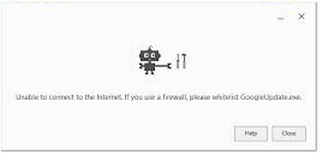
Thanks to a fellow Google chrome user:  Vardhman Soni He has a fix for the error you can get when to try to install Google Chrome and you get the following error: I've also had this issue with using Google Sync for Outlook as well. You can watch his video on how to fix it below: how to whitelist googleupdate.exe in firewall in just 3 minutes Solution. https://www.youtube.com/watch?v=uYXM8QkLgT0

New Pi Project - Google Chat and Pi

Websites referenced: https://freeswitch.org/confluence/display/FREESWITCH/Debian+7#Debian7-DebianPackage http://raspberrypipbx.blogspot.co.nz/2012/12/using-google-voice-as-land-line.html Fail... it requires outdated files and components :(

Using Pandora & Adding Remote Control - Part 6

Image
To start up Pianobar, just type: pianobar and it should start loading and look like below. From here the controls are described on screen, on how to use it. Sound Card Notification Problem I had a problem with it announcing which sound card it was using every time it changed a song. To fix this, we have to edit another file to stop this from displaying. So (q) quit out of Pianobar and back at the terminal prompt, we need to type: sudo cp /usr/share/alsa/alsa.conf /usr/share/alsa/alsa.conf.bak This will make a backup of the sound config file. Then: sudo nano /usr/share/alsa/alsa.conf Using Nano to open up the file and we need to find a line of script that looks like this: pcm.front cards.pcm.front Its mid-way in the file. Change it to this pcm.front cards.pcm.default This should remove that notification. Run Pianobar again and it should be now playing properly. Adding Remote Control Now that we have Pianobar working properly and how w...

Installing Pianobar - Part 5

Image
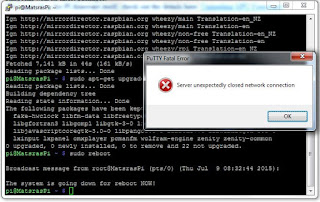
After connecting with PuTTY, remotely, to the PI. Our first task is to upgrade this version of Raspbian with its latest packages. (Important Note: Linux and Raspbian are case sensitive, so use caps or normal letters when typing where needed) (For upgrading the PI firmware itself, check out the details here: Upgrading GPU Firmware ) Updating and Upgrading Raspbian So from the prompt: (Which should look like pi@MatsrasPi ~$ ) Type in: sudo apt-get -q -y update (Or you can copy and paste the command into the window. Do this by highlighting and copy the command, then switch to Putty and use the right-hand mouse button, which will automatically paste in the command.) After that command, which can take up to 5 minutes, do the next command: sudo apt-get -q -y dist-upgrade This will take a lot longer (20-30 mins), as it will need to download the latest packages. It may also ask you if you would like to download these upgrades, so type 'y' and press enter on the ...

Remote Software and Connecting - Part 4

Image
Now that we have the IP address for the Raspberry Pi, we need to use another pc to remote into it and complete some of the tasks. Remote Software To connect to the Pi, we need to use software that can use the SSH method of connection. You will need to download the program called PuTTY. Downloading Download site: http://www.chiark.greenend.org.uk/~sgtatham/putty/download.html We only need the Intel x86 version, so just click on the hyperlink title 'putty.exe' and ignore the other links next to it. This should automatically ask if you want to save the file locally. Save it, and once it's downloaded, run the application. Configuring PuTTY Once the application has started, you should see the options available, like below.   Ignoring any advance options, all we need to focus on are the areas indicated above. Host Name (or ip address) : xxx.xxx.xxx.xxx - In here will be the address we wrote down earlier. The one above is just an example. Port : 22 - Th...